Topic Introduction
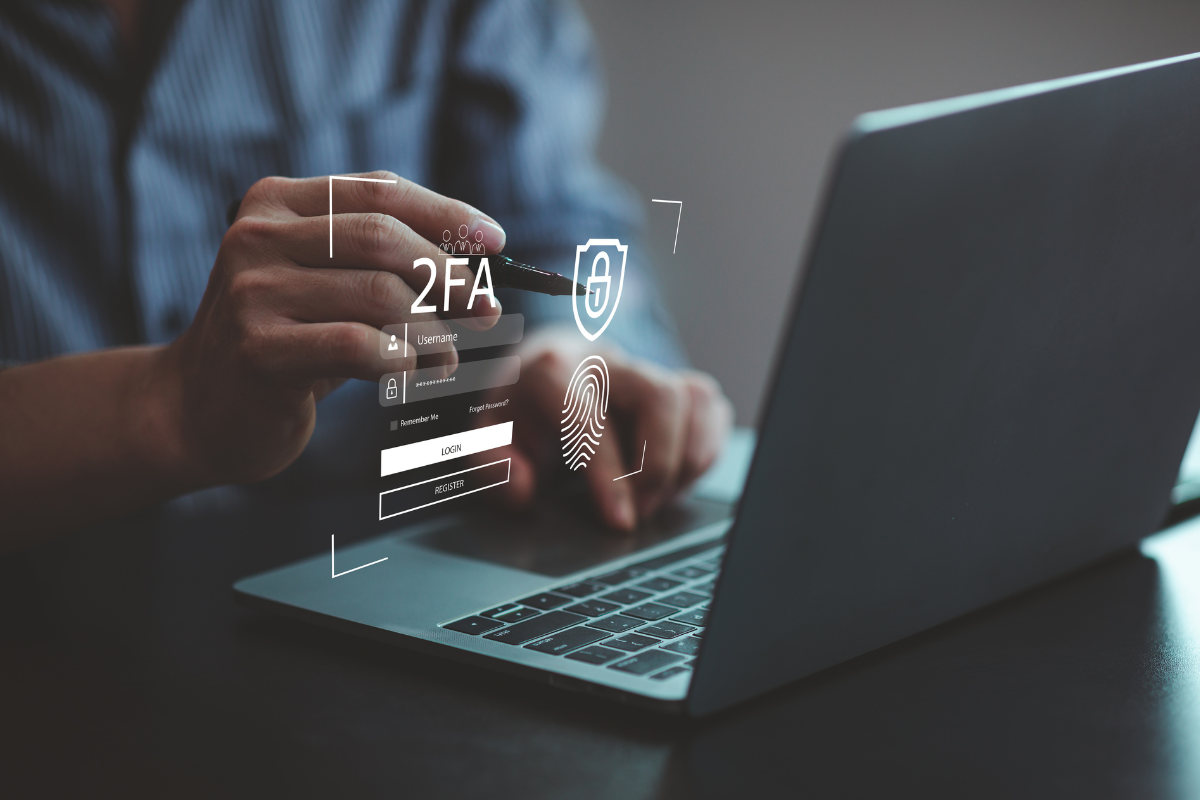
Two-factor authentication (2FA) adds a second step to sign-in, usually combining something you know (a password) with something you have (a phone, hardware key, or authenticator app). After you enter your password, the service asks for a code or a confirmation tied to your second factor.
For health-related accounts, 2FA matters because login credentials often unlock sensitive data such as appointment history, prescriptions, billing records, or messages from care teams. A common example is a patient portal that sends a one-time code to your phone or generates a code in an authenticator app. Another example is email, where attackers frequently start by taking over the inbox and then resetting passwords for other services.
In practice, 2FA reduces account takeovers by forcing an attacker to also obtain the second factor. The strength depends on the method: SMS codes, authenticator apps, and hardware security keys behave differently under real attack attempts. If you set 2FA and then never test recovery, you may lock yourself out during the next phone change, which is why the setup steps matter.
Main Problems Or Pain Points
People often enable 2FA but misunderstand what it covers. Some services protect only the login screen, while other actions such as changing email, adding a new device, or resetting passwords may require additional verification. If you skip those settings, an attacker who already has access to your session might still change critical account details.
Another frequent issue is relying on SMS alone. SMS codes can be intercepted through SIM-swap attacks or redirected messages, and the risk varies by carrier and region. Authenticator apps and security keys avoid that specific weakness because the code generation or cryptographic challenge happens on the device or key rather than through the phone network.
Setup also depends on supporting technologies. Many accounts use TOTP (time-based one-time passwords) for authenticator apps, which means the code changes every short interval and the app must have correct time. If your phone clock drifts, codes fail even when you typed the right password. I once saw a user on iOS 17.5 (March 2024) whose time zone setting was stuck, and the authenticator codes kept expiring early.
Recovery is where most lockouts happen. Services typically offer recovery codes or a backup method such as an alternate phone number. If you store recovery codes only in the same email account you are securing, you have created a circular dependency. When the email account is compromised, the recovery path often disappears too.
Solutions And Advice
Pick A 2FA Method
Start by choosing the second factor type offered by the service. If the account supports an authenticator app (TOTP) or a hardware security key (WebAuthn/FIDO2), those options usually resist common interception attacks better than SMS. If the service offers only SMS, you can still enable it, then add other protections like strong passwords and session alerts.
When you select an authenticator app, check whether the service shows a QR code or a manual setup key. Use an app that supports TOTP and verify the code works immediately after setup. If the account supports multiple methods, add at least two so you can recover without waiting for support.
Set Up Recovery Codes
After enabling 2FA, download or print recovery codes and store them offline. A practical approach is to keep one copy in a secure place at home and another in a separate location, such as a locked drawer, not on the same phone you might lose. If the service offers a recovery email, choose an address you also protect with 2FA.
Write down the date you generated the codes. Many services invalidate old codes after regeneration, and you do not want to discover that during an emergency. I recommend a quick test: log out, sign back in, and confirm you can complete the flow using the new method.
Harden Account Changes
Open the account security settings and look for actions that require re-authentication. Common toggles include “confirm before changing password,” “verify before changing email,” and “new device alerts.” Turn on notifications for login attempts and device changes so you can respond quickly if something looks wrong.
Also review session management. Some services let you view active sessions and revoke them. If you recently suspect compromise, revoke sessions after enabling 2FA so the attacker cannot keep using an existing logged-in session.
Test With A Dry Run
Do a controlled sign-in test. Log out of the account on your current browser, then sign back in using the password and the 2FA method. If you use an authenticator app, confirm the code is accepted within the time window.
Test recovery while you still have access. For example, try using a recovery code once in a test environment if the service supports it, or at least verify the recovery code format and where it is stored. If you changed phones recently, verify that your authenticator app has been migrated correctly; some apps require manual transfer and the codes do not carry over automatically.
Case Examples
Example 1: Patient Portal With SMS
A person named Alex signs into a clinic portal using a password and enables SMS-based 2FA. After setup, Alex saves recovery codes to a password manager vault and turns on “new device alerts.” Two months later, Alex changes phones and keeps the old SIM active for a week, then completes the 2FA re-verification on the new device. The portal login works because Alex had both recovery codes and alerts to catch any failed attempts.
Example 2: Email First, Then Portal
Sam notices that the clinic portal uses email for password resets. Sam enables 2FA on the email account using an authenticator app, then adds 2FA to the portal using the same authenticator app. When Sam tests sign-in, the portal prompts for a code and accepts it. The key detail is that Sam also checks the portal’s “change email” and “reset password” verification settings, so an attacker cannot switch the reset address without passing the second factor.
Comparison Table Or Checklist
| Method | What You Use | Common Failure Mode | Practical Next Step |
|---|---|---|---|
| SMS Code | Phone number | SIM swap or delayed delivery | Add authenticator or key if offered; store recovery codes offline |
| Authenticator App | TOTP code on phone | Wrong time zone or clock drift | Enable automatic time; test sign-in after setup |
| Security Key | Hardware token | Lost key without backup | Add a second key or keep recovery codes |
Quick checklist (10 minutes):
- Open the account security page and enable 2FA.
- Choose the strongest method available (authenticator app or security key when offered).
- Save recovery codes offline and write the generation date.
- Turn on login and device-change alerts.
- Log out and complete a fresh sign-in test.
- Re-check settings for password resets and email changes.
Common Mistakes
One mistake is enabling 2FA but leaving the recovery path weak. If recovery codes are stored only in the same email account without 2FA, the attacker can often reset everything in sequence. Another mistake is adding only one factor and then losing the device, which turns a security improvement into a support ticket.
People also mis-handle authenticator setup keys. If you scan the QR code and then delete the setup entry before verifying, you may lose the only copy of the secret. Some services show a manual key; saving that key in a secure password manager can prevent repeated setup attempts.
SMS-based setups often get treated as “good enough” without checking whether the service supports stronger methods. If the account offers WebAuthn security keys, you can add one as a backup and keep SMS as a fallback. That reduces dependence on carrier delivery.
Finally, many users skip session review. If you suspect unauthorized access, enabling 2FA without revoking active sessions can leave an attacker with a still-valid login. Revoke sessions after changing security settings, then watch alerts for new sign-in attempts.
FAQ
What Is 2FA In Plain Terms?
2FA requires two separate checks during sign-in, typically a password plus a second factor like a code from an authenticator app or a confirmation from a security key.
Which 2FA Method Works Best?
Authenticator apps and security keys generally resist interception attacks better than SMS. SMS can still reduce risk compared with password-only logins, but it depends on the phone network and account recovery controls.
What If I Lose My Phone?
Use recovery codes or a backup method you set up earlier, such as a second authenticator device or an additional security key. If you did not save recovery codes offline, you may need account support to regain access.
Why Do Authenticator Codes Fail?
Most failures come from incorrect device time, a wrong QR scan, or using the wrong account entry in the authenticator app. Turn on automatic time and repeat setup if the service shows a new secret.
Does 2FA Protect Against All Attacks?
2FA blocks many password-only takeovers, but it does not stop every threat. Phishing can still trick users into entering codes, and attackers with an active session may change account settings unless you enable re-authentication for sensitive actions.
Author's Insight
2FA strength depends on the second factor and the account’s recovery design, not just the presence of a toggle. Evidence from security research consistently shows that SMS is weaker than authenticator apps and hardware keys because phone numbers can be targeted. TOTP-based codes also require correct device time, which explains many “it doesn’t work” reports. A careful setup includes recovery codes, device-change alerts, and a sign-in test after enabling 2FA.
If you want a quick way to judge your setup, check three things: whether you can sign in after logging out, whether you can recover without the original phone, and whether password resets and email changes require the second factor.
Key Takeaways
- Enable 2FA on the accounts that control access to health portals, especially email.
- Prefer authenticator apps or security keys when available, and keep SMS only as a fallback.
- Save recovery codes offline and test sign-in right after setup.
- Review sensitive actions like password resets and email changes, then revoke active sessions if compromise is suspected.