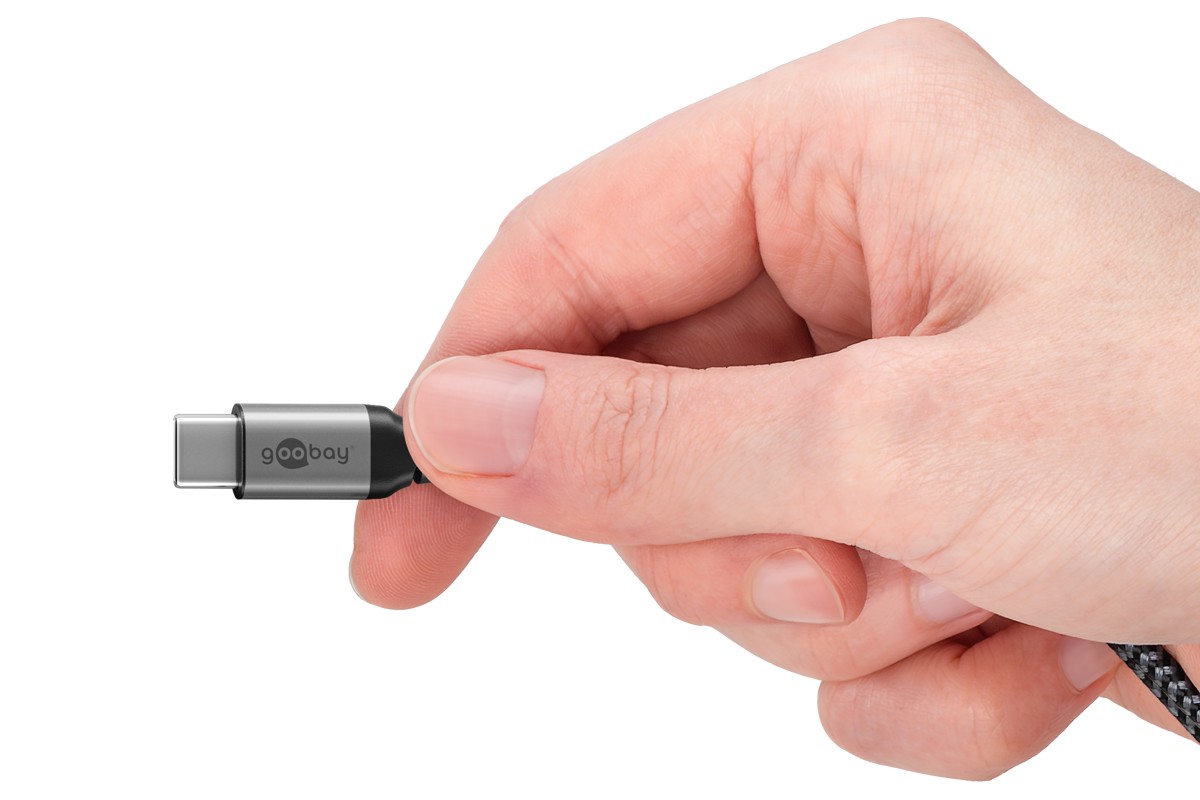
USB-C Speed Ratings Explained
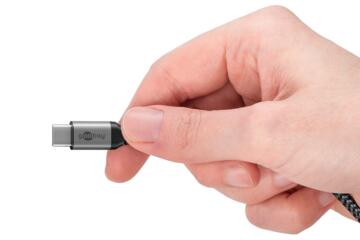
USB-C is a connector shape, not a single performance level. The “20Gbps”, “40Gbps”, and “80Gbps” labels refer to maximum data rates under specific USB and alternate-mode configurations, and those configurations depend on the device and cable. A phone with a USB-C port can support charging only, while a laptop with the same connector can support high-speed data and video over the same physical plug. Real transfer speed also depends on the storage in the drive, the file type, and whether the link is negotiating the highest mode it can handle.
In practice, you see these numbers on product pages, cable packaging, and port descriptions. The number is a ceiling, not a guarantee. If a cable is rated for 40Gbps but the host port only negotiates a lower mode, the link drops to what both ends support. That negotiation happens at connection time, and it is why two “80Gbps” cables can still behave differently when paired with different devices.
What People Get Wrong
The most common mistake is treating the headline speed as a universal property of USB-C. USB-C ports can carry different protocols: USB data, DisplayPort video, Thunderbolt, or other alternate modes. Each protocol has its own bandwidth needs and constraints, so “80Gbps” may apply to one mode while another mode on the same port runs slower.
Another frequent confusion is mixing cable ratings with device capabilities. Cable markings often reflect what the cable can handle electrically, not what your laptop or phone will negotiate. A cable can be capable of 80Gbps signaling, yet the host controller may only expose a USB 3.x link, or it may split bandwidth between data and display. On some laptops, a single port can share lanes with an internal display or a dock, so the same port behaves differently when a monitor is connected.
People also underestimate how power delivery interacts with high-speed links. USB Power Delivery (PD) negotiates voltage and current separately from data signaling, but some devices reduce performance modes when power constraints or thermal limits kick in. If you are charging a bus-powered SSD enclosure and also streaming video, the device may throttle the data path even though the cable is “fast.”
Finally, the “Gbps” number is not the same as “GB/s” you see in file copy tools. USB overhead, protocol framing, and drive write behavior reduce throughput. A 20Gbps link does not translate into 2.5GB/s sustained writes in typical consumer scenarios, and a 40Gbps link rarely hits its theoretical maximum for small files.
How To Choose The Right Speed
Match Port, Cable, And Use Case
Start by checking the device’s port labeling in the manual or on the port itself. Look for terms like “USB 3.2 Gen 2x2,” “USB4,” “Thunderbolt,” or “DisplayPort Alt Mode,” because those labels map to different bandwidth ceilings. If your laptop lists USB4 or Thunderbolt support, then 40Gbps or 80Gbps claims may apply depending on the exact generation and configuration.
Then match the cable to the highest mode you expect to use. For example, a cable marketed as “USB4 40Gbps” is designed for the USB4 class of signaling, while “80Gbps” cables are typically associated with higher-performance USB4/Thunderbolt-style signaling. A cable that is “charging-only” or “USB 2.0” will never reach those rates even if it has a USB-C plug. I once saw a “USB-C” cable bundled with a monitor that charged a phone but capped data transfers at USB 2.0—annoying, because the connector looked identical.
Use Realistic Expectations For Transfers
For decision-making, focus on sustained throughput for your workload. Large sequential transfers to an SSD can approach a meaningful fraction of the link’s ceiling, while many small-file workflows land far lower due to file system overhead and latency. If you copy a folder of photos, the bottleneck may be the drive’s controller rather than the USB link.
As a rough sanity check, compare your expected throughput to the drive’s advertised speed and the enclosure’s controller limits. A bus-powered NVMe enclosure can hit high speeds briefly, then slow when it heats. If your tool shows 200–400MB/s on a “40Gbps” path, that can still be consistent with a drive that cannot sustain higher writes.
Verify With Negotiation Clues
Some operating systems expose negotiated link details. On Windows, Device Manager and vendor utilities sometimes show USB link speed for storage devices. On macOS, system reports can reveal USB4/Thunderbolt link status for certain docks and enclosures. Linux can show negotiated speeds through sysfs entries for USB devices, though the exact paths vary by kernel version.
If you want a practical method, connect the same SSD enclosure to two different hosts and compare results under the same test conditions. If one host consistently negotiates a higher mode, the cable is likely fine and the host is the limiting factor. If both hosts show the same low speed, the enclosure or cable may be the constraint.
Plan For Video And Dock Bandwidth
When you use USB-C for displays, bandwidth is shared between video streams and data. A dock may route multiple signals through the same physical port, and the dock’s internal controller decides how lanes are allocated. That is why a laptop can support 40Gbps on paper but still run a monitor at a lower refresh rate when you also attach a high-speed SSD.
Check the dock’s documentation for supported display resolutions and refresh rates under “USB-C” mode. If the dock lists 4K at 60Hz plus high-speed storage, it is making a bandwidth trade that may still reduce data throughput. If you see only 4K at 30Hz with the same setup, the dock may be reserving more bandwidth for video, leaving less for data.
Case Examples For Real Setups
Example 1: SSD Enclosure On A Laptop
A person buys a USB-C NVMe SSD enclosure marketed for “40Gbps.” Their laptop has a USB-C port labeled “USB4.” They test by copying a 20GB folder of mixed files. The first run reaches around 700–900MB/s for large files, then drops toward 300–600MB/s as the drive cache fills and the enclosure heats. The cable rating matters, but the enclosure controller and the SSD’s sustained write behavior explain most of the variation.
When they swap to a cheaper USB-C cable that is not rated for high-speed data, the transfer rate falls to roughly USB 3.0-era levels. That change confirms the earlier point: the connector shape does not guarantee the link mode.
Example 2: Dock With Monitor And Charging
A different user connects a laptop to a USB-C dock that supports a monitor and charges the laptop. The dock claims high-speed data over USB-C, but the user notices slower file transfers when the monitor is active. The laptop’s port likely shares bandwidth between display alternate mode and USB data, so the negotiated mode changes when the monitor is connected.
After testing with the monitor disconnected, transfers improve. The user then checks the dock’s spec sheet and finds that certain display modes require reserving more bandwidth, which reduces the available data throughput. The “80Gbps” cable they used did not fix the dock’s internal allocation limits.
Comparison Table And Checklist
| Parameter | 20Gbps | 40Gbps | 80Gbps |
|---|---|---|---|
| What the number means | A maximum data rate ceiling for a specific USB mode | A higher ceiling for USB4-class signaling in supported setups | A higher ceiling tied to higher-performance signaling modes |
| Common real-world bottlenecks | SSD/enclosure controller, file mix, overhead | Dock bandwidth sharing, drive sustained writes | Host negotiation limits, dock lane allocation, thermals |
| How to confirm it applies | Check device port labels and cable data rating | Verify USB4/Thunderbolt support and test with the same enclosure | Confirm both ends support the higher mode; test with and without video |
| Best use match | General data and moderate external storage | Fast external SSD work and many dock setups | High-throughput storage plus demanding alternate-mode use |
Checklist for a purchase or troubleshooting session:
- Read the device manual or port label for the protocol name (USB4, Thunderbolt, USB 3.2 Gen 2x2, DisplayPort Alt Mode).
- Buy a cable that explicitly supports the data mode you need, not just “USB-C.”
- Test with the same SSD enclosure on two hosts to separate cable issues from host negotiation.
- If you use a dock, check the dock’s display specs and note which combinations reduce data speed.
- Run a repeatable test: one large sequential file and one mixed small-file folder, then compare results.
Common Mistakes To Avoid
Buying a cable based only on the connector and the highest number on the box often leads to disappointment. Many cables claim high bandwidth but do not support the exact mode your device negotiates, and some “80Gbps” listings are marketing shorthand rather than a clear protocol guarantee.
Another mistake is assuming that a faster cable fixes a slow dock. Docks can cap throughput due to their internal controller, and they can reserve bandwidth for video and Ethernet. If you see the same slow speed on multiple cables, the dock’s internal allocation is the likely limiter.
People also skip thermal and power considerations. A bus-powered enclosure can throttle after a short burst, so a single benchmark run can mislead you. If you rerun the test after 5–10 minutes and the speed drops, the limiting factor is often heat or power delivery behavior rather than the nominal link rate.
Finally, users sometimes compare results from different test tools without controlling for file size and transfer pattern. A tool that measures “peak” speed on a small file can look great while sustained copying of large datasets stays much lower.
FAQ
Does An 80Gbps Cable Guarantee 80Gbps?
No. The host port and the connected device must both support the higher signaling mode, and the link may drop when video alternate modes or dock bandwidth sharing are active.
Why Is My Transfer Speed Lower Than The Rating?
USB overhead, storage controller limits, enclosure thermals, and small-file latency reduce throughput. The negotiated mode can also be lower than the cable’s maximum.
Can USB-C Charging Use The Same Cable As High-Speed Data?
Charging and data negotiate separately. A cable that supports high-speed data can charge and transfer, but a “charging-only” cable may cap data even while charging works normally.
Do Docks Change USB-C Speed?
Yes. Docks share bandwidth across USB data, display alternate modes, and sometimes Ethernet. The dock’s internal design determines how much throughput remains for storage transfers.
How Can I Check The Negotiated Speed?
Use device-specific diagnostics when available, or compare the same enclosure across two hosts. Some systems expose negotiated USB link speed, while others require indirect testing.
Author's Insight
USB-C speed numbers map to maximum link capabilities, not a universal promise of real throughput. The practical outcome depends on protocol negotiation (USB4/Thunderbolt vs USB 3.x), cable data signaling support, and how docks allocate bandwidth across video and data. In troubleshooting, the fastest path is to separate variables: test the same enclosure on different hosts, then test with and without display connections. I also recommend recording the exact cable label and the port label from the device manual, because those two details explain most “why is it slow?” cases.
Key Takeaways
- USB-C is a connector; 20Gbps, 40Gbps, and 80Gbps are mode ceilings that require matching device support.
- Real transfer speed depends on the storage device, enclosure controller, thermals, and file mix.
- Docks and monitors can reduce available bandwidth by reserving lanes for video alternate modes.
- Confirm the negotiated mode using port labels and repeatable tests, not only cable packaging claims.