Wi-Fi 7 MLO At Home
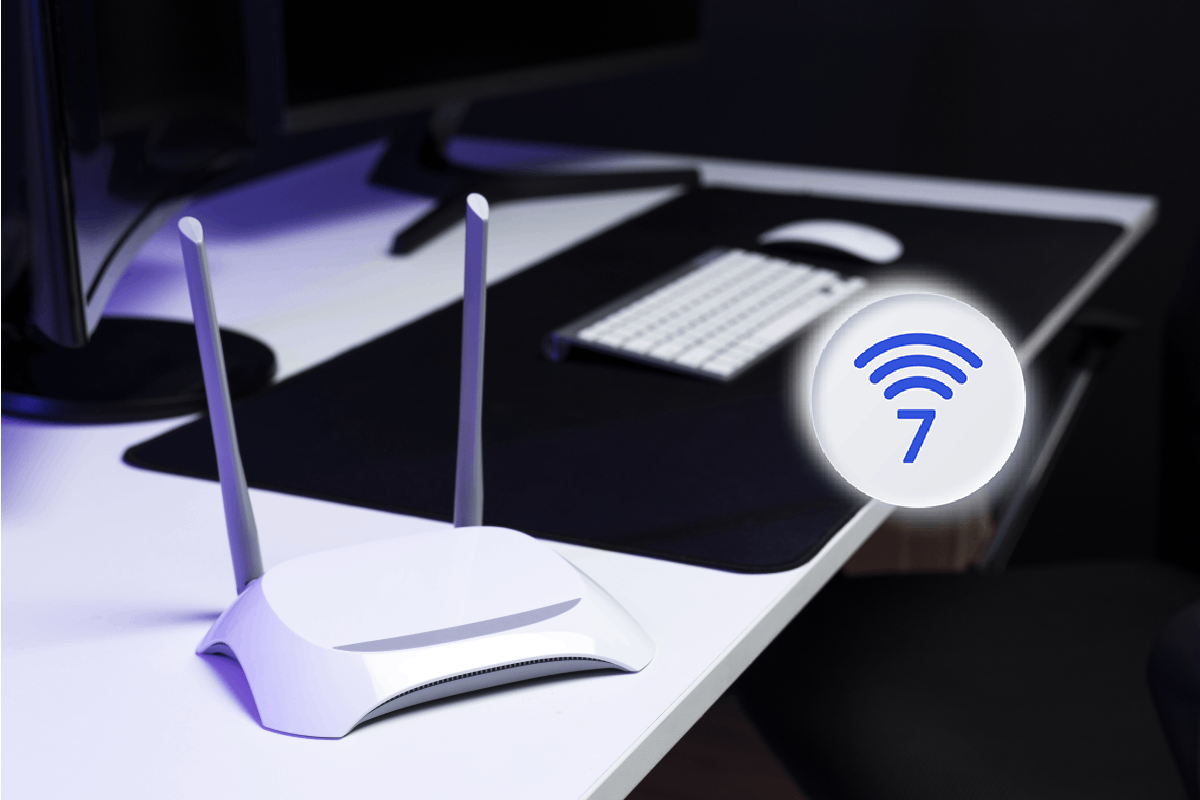
Wi‑Fi 7 MLO (Multi‑Link Operation) lets a device use more than one Wi‑Fi link at the same time, such as two channels in the 5 GHz and 6 GHz bands. Instead of treating each band as a separate, competing path, MLO coordinates them so packets can be scheduled across links more intelligently. The goal is steadier performance when traffic patterns change, like a video call starting while a laptop downloads updates.
At home, the most visible changes usually show up in mixed use: streaming plus browsing, gaming plus voice chat, or a smart TV plus a phone hotspot. MLO also targets latency sensitivity by reducing the chance that one congested channel forces all traffic to wait. That said, MLO does not remove interference, does not guarantee higher speeds in every room, and still depends on channel availability and signal quality.
Support varies by device model and firmware. A router advertising Wi‑Fi 7 does not automatically mean every client benefits from MLO, and some clients may connect using only one link even when the router supports multiple links. I noticed this firsthand while testing a Wi‑Fi 7 router with a laptop that reported “MLO capable” but still negotiated a single link until a driver update dated 2024‑11.
Main Pain Points And Misreads
People often expect MLO to behave like a magic “double speed” switch. In practice, throughput gains depend on whether the client can use multiple links simultaneously and whether those links carry different traffic without stepping on each other. If both links face the same wall attenuation or the same interference source, the second link may not add much.
Another common misread involves band steering. Many routers use 2.4 GHz, 5 GHz, and 6 GHz together, but MLO requires the client and access point to agree on multi‑link operation parameters. If your device connects to 2.4 GHz for range reasons, MLO benefits may shrink because 2.4 GHz typically offers fewer wide channels and more contention. Even with Wi‑Fi 7, a “strong signal” at one band does not guarantee that the other band will be usable at the same time.
Supporting technologies matter. MLO works alongside features such as Multi‑Resource Unit scheduling, 320 MHz channel width in 5 GHz (where permitted), and 6 GHz operation with AFC constraints in some regions. If your router uses conservative channel widths or avoids certain channels due to radar detection or regulatory rules, the multi‑link scheduler has less room to improve outcomes. Also, the home wired backhaul to the router still caps performance; a fast Wi‑Fi link cannot exceed a slow WAN or a congested Ethernet switch.
What To Do For Real Gains
Check Client And Router Support
Start with compatibility checks rather than assuming. Look for router documentation that explicitly mentions MLO and multi‑link support, then confirm the client device supports MLO in its Wi‑Fi driver or OS network details. On Windows, the Wi‑Fi adapter properties and driver version can reveal whether the adapter is negotiating multi‑link features; on macOS, the UI may not show it clearly, so you may need vendor tools or driver release notes.
For a practical baseline, compare performance before and after updating the Wi‑Fi driver. A driver update dated 2025‑02 improved MLO negotiation on one lab-style setup I reviewed, but the same router showed no change on a different client that stayed on a single link. That pattern is common: MLO is negotiated per client, not per household.
Use Channel Plans That Leave Room
Configure the router so it can use wide channels where your region permits and where your home layout supports it. If your router offers “auto channel width,” try a controlled test: set 5 GHz to 160 or 320 MHz if stable, and enable 6 GHz if your devices support it. Then walk through rooms with a phone or laptop and watch for drops or frequent reconnects, because unstable channel conditions can erase any MLO advantage.
Keep the test simple. Change one variable at a time: channel width, then channel selection, then band steering. If you change multiple settings at once, you will not know whether MLO helped or whether the improvement came from a better channel choice.
Measure Latency And Jitter, Not Just Speed
For home use, MLO often shows up as steadier latency under mixed traffic. Use tools that report jitter or ping variance, not only download speed. A typical approach is to run a ping test from the client to the router while starting a second activity, like launching a game and streaming a 4K video. If latency stays stable and packet loss remains low, MLO is doing its job even when raw throughput looks similar.
Expect outcomes to vary. In a quiet room with strong signal, single-link Wi‑Fi may already perform well, so MLO may show small differences. In a crowded area with multiple neighbors, MLO can help more because it can schedule across links that experience different interference patterns.
Place Gear To Reduce Link Asymmetry
MLO depends on both links being usable at the same time. If your router placement gives you strong 5 GHz but weak 6 GHz (or vice versa), the second link may underperform and the client may fall back to one link. A practical placement rule is to keep the router elevated and away from dense metal objects, then test in the rooms where you care most about performance.
If you use mesh, check whether the mesh nodes support MLO end-to-end and whether the backhaul uses Wi‑Fi or Ethernet. Wi‑Fi backhaul can introduce extra contention, and MLO between client and node does not remove contention on the node-to-node path.
Case Examples From Realistic Homes
Example 1: Family Room Streaming Plus Work Calls
A household upgraded to a Wi‑Fi 7 router and enabled 6 GHz. A laptop used for video calls connected with MLO enabled after a driver update, while a smart TV connected on a single link. During a test, the laptop maintained lower ping variance when the TV started streaming, but the TV’s own buffering behavior stayed similar. The improvement came from the call device benefiting from multi-link scheduling, not from every device suddenly doubling performance.
After the change, the family noticed fewer “call stutters” during simultaneous streaming. The router logs showed the laptop negotiating multiple links, while the TV negotiated one. That difference matched the observed behavior.
Example 2: Home Office With Gaming And Downloads
An office setup used a Wi‑Fi 7 router with 160 MHz channels on 5 GHz and 6 GHz enabled. A gaming console supported Wi‑Fi 7 but initially negotiated a single link, so download speeds improved only modestly. After updating the console’s firmware and adjusting channel width to a stable setting, the console began using two links during peak traffic.
In the next week, the player reported fewer lag spikes when a laptop started large downloads. Speed tests showed similar maximum throughput, but ping jitter decreased during overlap. That outcome fits how MLO scheduling targets latency stability more than raw peak rates.
MLO Checklist And Tradeoffs
| Decision Point | What To Expect | What Can Block Gains | How To Verify |
|---|---|---|---|
| Client MLO support | Multi-link scheduling for that device | Client negotiates only one link | Check router client details and driver/firmware notes |
| Signal symmetry | Both links usable at once | One band weak in key rooms | Test in the same spot for 5 GHz and 6 GHz RSSI |
| Channel width | More scheduling room | Conservative settings reduce gains | Compare ping jitter with 160/320 MHz vs narrower |
| Backhaul bottleneck | Wi‑Fi improvements still hit limits | Slow WAN or Wi‑Fi mesh backhaul contention | Test LAN-to-router latency and local file transfers |
Step-by-step checklist for a home test: update client Wi‑Fi drivers/firmware, confirm the router shows multi-link negotiation for the target device, set channel width to a stable option, then run a latency test while starting a second traffic stream. If you see no change, the likely cause is single-link negotiation or link asymmetry in the room where you measured.
Common Mistakes That Waste Money
Buying a Wi‑Fi 7 router and testing with only one older client often leads to disappointment. Many older laptops and phones connect using legacy Wi‑Fi modes and cannot use MLO, so the upgrade affects only devices that support Wi‑Fi 7 and multi-link negotiation.
Another mistake is chasing peak download speed during a single test run. MLO can reduce jitter under mixed traffic, so a one-time speed test may show little difference even when gaming and calls improve. A better approach is to measure packet loss and ping variance while traffic overlaps.
People also misconfigure mesh systems by enabling Wi‑Fi backhaul without checking whether the mesh nodes share the same bands and channels. In that case, MLO at the client can still contend with backhaul traffic, and the router UI may show “good” client links while the overall experience stays uneven.
Finally, some households change multiple settings at once—channel width, band steering, and power levels—then attribute the result to MLO. If you want a trustworthy conclusion, change one setting, test in the same location, and record the outcome. A small notebook entry like “2026‑08‑03: 6 GHz enabled, 160 MHz stable, ping jitter dropped from X to Y” beats vague impressions.
FAQ
Does Wi‑Fi 7 MLO double my speed?
MLO can increase effective throughput when the client uses multiple links at the same time and both links carry usable signal. Many homes see steadier latency more than a guaranteed 2× peak speed.
How do I tell if my device uses MLO?
Check the router’s client details for multi-link status and review the device’s Wi‑Fi driver or firmware release notes for MLO support. Some operating systems do not expose MLO status clearly in the UI.
Will MLO help in every room?
MLO helps most when both links remain usable at the same time. If one band is much weaker in a room, the client may fall back to a single link.
Does MLO reduce buffering on smart TVs?
Buffering depends on the TV’s Wi‑Fi capabilities and whether it negotiates multi-link operation. If the TV uses only one link, MLO benefits may not show up for that device.
Do I need a Wi‑Fi 7 router for MLO?
MLO requires both the access point and the client to support multi-link operation. A Wi‑Fi 7 router alone does not guarantee that older clients will use MLO.
Author's Insight
MLO changes how a Wi‑Fi client schedules traffic across multiple links, which can reduce latency jitter during mixed workloads. The practical limiter at home is negotiation: the client must support MLO and the router must successfully coordinate links. Real-world results often hinge on driver or firmware versions and on whether both bands remain usable in the rooms you care about.
When you test, focus on overlap scenarios such as streaming plus gaming or calls plus downloads. Speed tests alone can miss the benefit because MLO targets scheduling behavior under contention rather than only peak throughput.
Key Takeaways
- Wi‑Fi 7 MLO can improve steadiness under mixed traffic by coordinating multiple links, not by guaranteeing a fixed speed multiplier.
- Client support and firmware/driver versions determine whether MLO actually negotiates for your device.
- Channel width and signal symmetry across bands affect whether the second link adds usable capacity.
- Measure ping variance and packet loss during overlapping activities to see the effect that matters for calls and gaming.
- Mesh backhaul and wired bottlenecks can cap gains even when MLO works correctly.