Topic Introduction
Main accounts usually share one trait: they can reset other accounts. Email accounts often receive password reset links, banking portals can move funds, and cloud storage can expose documents used for identity verification. This checklist focuses on the control points that attackers target: login credentials, session access, account recovery, and device/browser trust.
Start with a simple inventory. Write down the accounts that can change passwords, receive reset emails, or access payment methods. Common examples include your email provider, banking app, card issuer portal, payroll or benefits accounts, and password manager. If you use a work email for personal banking, treat it as a high-risk dependency.
Then map the “recovery chain.” If someone gains access to your email, they often gain access to password resets for many services. If someone gains access to your phone number, they can intercept SMS-based codes. If someone gains access to your device, they can sometimes reuse an already-authenticated session, which bypasses password prompts.
Main Problems And Pain Points
People often secure the login page and ignore the recovery path. A password change does not help when the attacker resets the password through a compromised recovery email or SIM swap. Many account takeovers begin with phishing that steals credentials, then the attacker waits for the victim to log out and forces a reset.
Another frequent mistake involves partial protection. You may enable two-factor authentication (2FA) on banking, but leave email on SMS codes, or keep a recovery email that no longer belongs to you. Attackers look for the weakest link in the chain, not the strongest one. Session theft also matters: malware or browser extensions can capture tokens while you remain logged in.
Supporting technologies create dependencies. Password managers reduce password reuse, but they also become a high-value target. If your password manager unlocks with a weak master password or a single factor, the whole system weakens. If you rely on SMS for 2FA, the security depends on the carrier’s processes and your phone’s protection against SIM swaps.
Phishing targets the human workflow around accounts. A fake “security alert” email can trick you into entering credentials on a lookalike site, and a malicious link can lead to a credential-harvesting page. Even without entering a password, some scams push you to approve a login in a push-based 2FA prompt, which, frankly, most people skip verifying carefully.
Solutions And Advice
Harden Recovery Options
Update recovery email and phone number to ones you control. Remove old numbers and unused inboxes, then test recovery by using the service’s “forgot password” flow without completing a reset. Many providers show whether recovery options are active, and you can confirm the correct destination for reset emails.
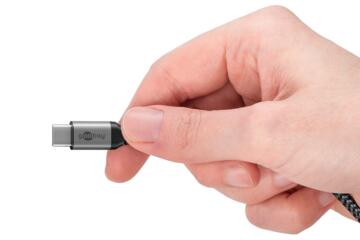
Prefer recovery methods that do not depend on SMS. If your provider offers authenticator apps or security keys, choose them. For example, a FIDO2 security key (WebAuthn) can protect logins even when an attacker has your password, because the key proves possession during authentication.
Check account recovery settings on the email provider first. If your email supports “trusted devices” or “recent activity,” review those lists and revoke anything you do not recognize. I once saw a “recent sign-in” list still showing a browser from 2022; it stayed there because the user never reviewed it after travel.
Use Strong, Unique Credentials
Use a password manager for unique passwords across main accounts. Set a long master password and avoid reusing it anywhere else. If the manager supports a second factor for unlocking, enable it and store recovery codes offline.
For accounts without a password manager option, generate a unique password anyway and store it in the manager. Aim for passwords that are long and random rather than “memorable.” Short patterns like “Name+Year” fail quickly against credential stuffing.
Turn on alerts for password changes and new logins. Many services send an email or push notification when a password changes, which gives you a chance to respond before the attacker completes the takeover. If you see alerts you did not trigger, act immediately by revoking sessions and changing credentials from a trusted device.
Strengthen Two-Factor Authentication
Use 2FA on email, banking, and payment portals. Choose authenticator apps or security keys over SMS when available. Authenticator apps generate time-based codes locally, which reduces exposure to SIM swap attacks.
For push-based 2FA, treat prompts like a bank transfer request. Approve only when you initiated the login, and deny everything else. Attackers sometimes try to trigger repeated prompts until you accept one by mistake, which is why you should also review login history after any suspicious prompt.
Store backup codes offline. Many providers show backup codes once during setup, and losing them forces you into recovery flows that can be slower. If your backup codes are stored in a cloud folder without extra protection, the attacker may reach them after compromising the same account.
Lock Down Devices And Sessions
Secure the devices that access your main accounts. Enable full-disk encryption on laptops and set a strong device passcode on phones. Keep the operating system updated; patching reduces exposure to known vulnerabilities that can steal session cookies.
Review browser extensions and remove anything you do not recognize. Extensions can read page content and sometimes access tokens in ways that are hard to detect. In a practical audit, I found a “coupon” extension installed since Chrome 91; it requested broad permissions and had no clear vendor identity.
Log out of accounts on shared or unmanaged devices. When a service offers “sign out of all sessions,” use it after suspected compromise. Also check whether your browser is saving passwords and whether autofill is enabled for sensitive sites.
Case Examples
Phishing Through Email Reset
An anonymized scenario: a person receives an email claiming their banking account will be locked unless they “verify.” The link leads to a lookalike page where they enter credentials. The attacker logs in and changes the recovery email on the banking portal, then waits for the victim to notice.
The defense: the victim had 2FA on banking but not on email. After enabling 2FA on the email account and switching to an authenticator app, they revoked sessions on both email and banking. They also removed an old recovery phone number that still belonged to a previous carrier plan.
SIM Swap And SMS Codes
An anonymized scenario: a person uses SMS codes for 2FA on email and card issuer accounts. They notice their phone number stops working for a short period, then they receive a “new device sign-in” notice they did not trigger.
The defense: they moved 2FA to an authenticator app for email and enabled a security key for the highest-risk logins. They contacted the carrier to investigate the number transfer and reviewed account recovery settings for any secondary email addresses. The key lesson was that SMS codes depend on carrier processes, not only on the account settings.
Comparison Table And Checklist
Use this decision support to choose what to change first. The order matters because some fixes reduce risk immediately while others depend on earlier steps.
| Change | Targets | Typical Time | Tradeoffs |
|---|---|---|---|
| Secure Email Recovery | Password reset chain | 10–20 min | Requires access to old recovery methods |
| Switch 2FA Away From SMS | SIM swap and interception | 15–30 min | Needs authenticator setup or key registration |
| Enable Session Revocation | Stolen tokens | 5–10 min | May log you out on devices |
| Audit Extensions And Devices | Token theft via malware | 20–45 min | Some extensions break workflows |
Step-by-step checklist for main accounts:
- List accounts that can reset other accounts: email, password manager, cloud storage, banking, card issuer.
- On the email provider, set 2FA using an authenticator app or security key and remove old recovery numbers.
- Turn on login and password-change alerts for email and banking.
- Switch banking and card issuer 2FA to authenticator app or security key and store backup codes offline.
- Revoke active sessions on email and banking, then sign in again from a trusted device.
- Remove unknown browser extensions and update the operating system and browser.
- Verify that your password manager has a strong master password and a second factor for unlocking.
Common Mistakes
Relying on one security control while leaving the recovery chain weak causes predictable failures. A strong password on banking does not stop an attacker who resets banking using access to email recovery. A security key on banking does not help if email still uses SMS and the attacker can intercept codes.
Another mistake involves storing backup codes in the same place as the account credentials. If backup codes sit in a notes app synced to the same email account, compromise of that email can expose the codes too. Offline storage works better: paper in a safe location or an offline password vault with separate access controls.
People also ignore “recent activity” and “trusted devices.” Attackers often keep access by adding a new trusted device, then they wait for the victim to stop checking alerts. Review these lists after travel and after any suspicious login prompt.
Finally, users sometimes treat 2FA setup as a one-time task. If you change phones, carriers, or browsers, you can break your own recovery path. A short quarterly check—confirming that your authenticator app still has the right accounts and that backup codes remain accessible—prevents lockouts.
FAQ
Which Accounts Matter Most?
Email and password manager accounts matter first because they often control password resets. Banking and card issuer portals matter next because they control money movement and payment methods.
Is SMS 2FA Enough?
SMS 2FA reduces risk compared with no 2FA, but it depends on phone-number security and carrier processes. Authenticator apps or security keys reduce exposure to SIM swap and interception scenarios.
What Should I Do After Suspicious Logins?
Revoke active sessions, change passwords from a trusted device, and review recovery settings for email and banking. Then check browser extensions and device security for signs of compromise.
How Do Security Keys Work?
Security keys use WebAuthn/FIDO2 to prove possession during login. The service challenges the key, and the key signs the response, which prevents simple password reuse from working.
How Often Should I Review Settings?
Review recovery options and login alerts after major changes like phone upgrades, carrier changes, or travel. A quarterly check of authenticator access and backup code storage helps prevent lockouts.
Author's Insight
This checklist focuses on mechanisms attackers use: password reset chains, session tokens, and recovery methods tied to email and phone numbers. Evidence-based security guidance consistently treats email recovery as the highest leverage point because many services delegate account recovery through it.
Practical outcomes depend on your exact provider features, so the steps emphasize settings you can verify inside account dashboards: recovery destinations, 2FA method type, active sessions, and login alerts.
When you switch from SMS to authenticator apps or security keys, you reduce reliance on carrier-level controls and reduce the chance that a compromised phone number grants access.
Key Takeaways
Protect the recovery chain starting with email and password manager accounts. Use authenticator apps or security keys for 2FA on main accounts, and store backup codes offline. Revoke sessions after any suspicious activity, then audit devices and browser extensions. Review settings after phone or carrier changes so your own recovery path stays intact.